 Arrumo AI Video Editor
Bring your social media channel into Arrumo
Turn a YouTube, TikTok, Instagram or other channel into a workspace that knows who you are, how you look, what you publish and where.
By the end of this tutorial you have a workspace built from your channel: an About you the agent drafted from your public pages, your brand colors and avatar, your thumbnails as style references, a profile for each kind of video you make, an output for each platform you post on, and your existing videos in Assets, ready to reuse. It takes about twenty minutes.
You need Arrumo and an agent, Claude Code or Codex, installed and signed in.
What Arrumo reads, and what it doesn't
Arrumo opens each link on your computer the way a visitor who isn't signed in would, keeps the page's name, description, visible text, images and theme color, and gives that to your agent to draft from. It never signs in to your accounts, and it doesn't download your videos or posts, or read your analytics, comments or private content. Nothing is saved until you press Save.
What each platform shows
Platforms decide what a visitor who isn't signed in can see, so some links give the agent much more to work with than others. This is what Arrumo found on each when we tested it in November 2026; platforms change their pages, so treat it as a guide.
| Platform | Link to add | What Arrumo gets |
|---|---|---|
| YouTube | youtube.com/@yourchannel | Channel name, description and avatar, plus the thumbnails of the videos on the page. |
| YouTube video | youtube.com/watch?v=… | The video's title and full description: a good sample of how you write. |
instagram.com/yourname | Name, follower and post counts, the start of your bio and your profile picture. | |
| TikTok | tiktok.com/@yourname | Often only the page title. Add your bio in the notes, or link your website or link-in-bio page. |
| X, Threads, Bluesky | your profile | Name, bio and profile picture. |
| LinkedIn, Facebook, Twitch | your page | Name, description and picture. |
| Your website or link-in-bio page | the home or about page | Usually the richest source: who you are, what you offer, your logo and your colors. |
Pick the links that describe you
You can add up to eight. A good set is your main channel, two or three of your best videos, your other profiles and your website. Arrumo reads only the page at each address, not the pages it links to.
Create the workspace and add your links
On first launch, Arrumo asks for a workspace name, the agent to use and Links to read. Paste your channel first, then the rest, and choose Create … and read the links (it names your workspace).
For a workspace you already have, open Workspace settings › Context. Under Where can Claude Code learn about you? (it names your agent), paste a link in Links, use Add another link for each of the others, and choose Draft my context.
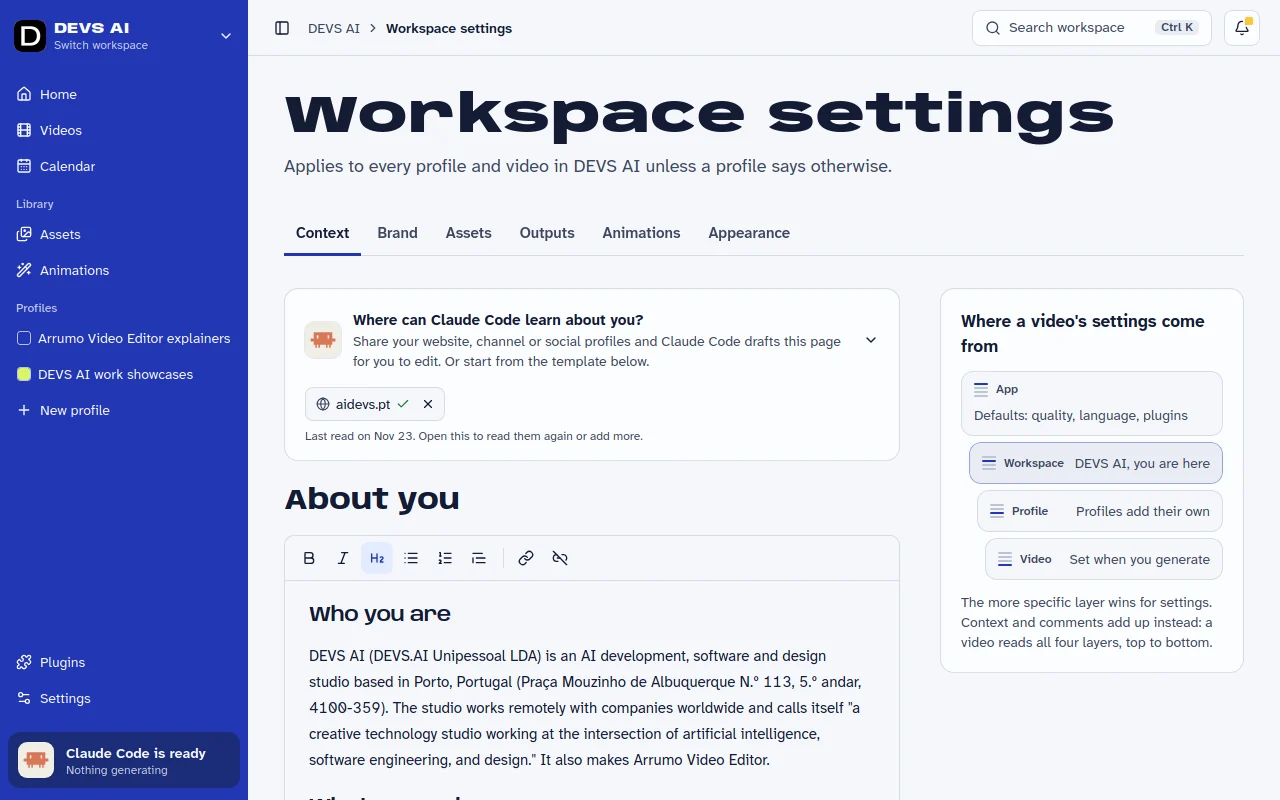
Use Anything else to know for what your pages don't say: what you make, who it's for, how you like to sound, and, for TikTok, your bio. Reading and drafting takes about a minute.
Review About you
The agent writes About you under the same headings for every creator: Who you are, What you make, Audience, Voice and tone, Visual style, Do and don't and Links. It fills in only what your pages and notes support, and leaves a short placeholder in [brackets] where it couldn't tell.
Read it like a brief for a new editor. Replace every placeholder, correct anything it guessed, and add what every video should respect, such as how you open videos, words you never use or the call to action you always end with. Then Save. Every script, cut and title starts from this page.
Keep what it found on your pages
Under Also found on your pages, the agent offers:
- Brand colors it could tell from your pages, such as the theme color and your avatar's accents.
- Images, already named, grouped and described: your avatar and logos as brand assets, your video thumbnails as thumbnail references with notes on their style, so new thumbnails match it, and other useful pictures as assets.
Untick anything you don't want and choose Add to workspace (the button counts what's ticked). Arrumo downloads the images into the workspace and tells you if any couldn't be downloaded.
If you publish distinct kinds of videos, such as a weekly series and short tips, the agent also lists Suggested profiles, each with editing guidance and a color. Choose Create profile on the ones that fit.
Check your brand
Open Workspace settings › Brand. Name each color and tick the ones videos may use; avatars rarely carry a full palette, so add any missing colors by hand. Add your heading and body fonts, Regular and Bold, so animations use them. See Set up your brand for every option.
Add an output for each platform
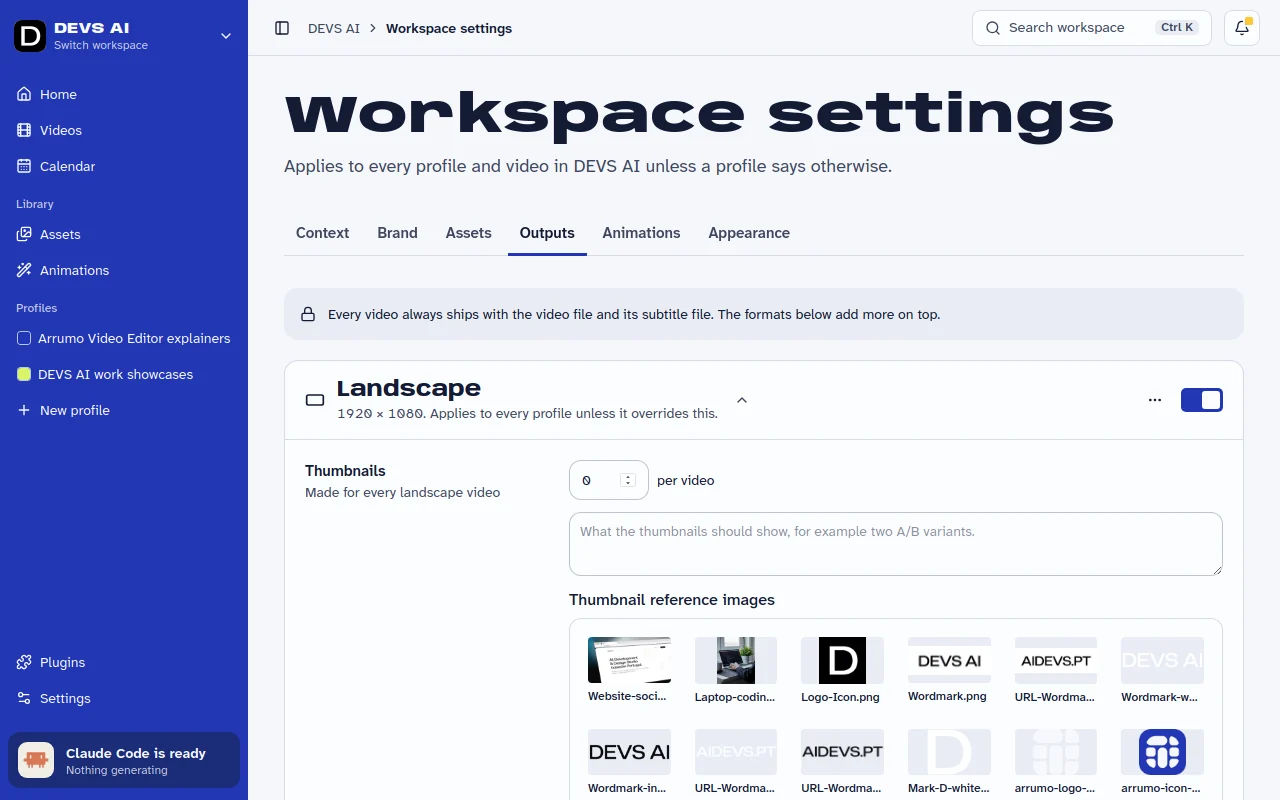
Open Workspace settings › Outputs. Every workspace starts with Landscape (1920 × 1080) and Portrait (1080 × 1920):
- Landscape for YouTube videos.
- Portrait for Shorts, TikTok and Reels. On Landscape, ask for Portrait cuts to also get short vertical clips taken from each approved video.
- Add format for anything else, such as a square post.
On each format, ask for titles, descriptions, tags and thumbnails, and put the platform's rules under Additional specifications, such as "titles under 60 characters" or "end every description with a link to the newsletter".
Bring in your existing videos
Arrumo doesn't download videos from platforms. To reuse your own videos, as footage for new ones or for portrait cuts, download the originals from each platform's own tools: YouTube Studio lets you download the videos you uploaded, and TikTok and Instagram include your videos when you download your account data from their settings. Your original recordings, if you still have them, are better still.
Then open Assets and choose Upload. Describe each video in its notes so the agent knows what's in it. To make a video from them, add them to a new draft from Videos › Drafts, as in Create and export your first video.
Read your links again later
Context keeps the links it read and shows Read or Could not be read for each. When your channel changes, open it again: it shows when they were last read and lets you read them again or add more. Forget a link you no longer want with the button beside it.
When a link can't be read
Check each address in a private browser window. Arrumo reads only public pages over the internet, never addresses on your own network. If your profiles are private or behind a sign-in, add a few words about yourself in Anything else to know and draft from those, or link your website instead.
The page may need you to be signed in, may be private, may not exist or may have taken too long to answer. Some platforms show a consent or region page first. Try the profile's plain address (instagram.com/yourname rather than a share link), or replace it with another page that describes you.
The pages had little text, as TikTok profiles often do. Add links to a few of your videos, your website or your link-in-bio page, write a few lines in Anything else to know, and draft again. You can also edit About you by hand at any time.
Only YouTube lists video thumbnails on the channel page. For other platforms, save a few of your thumbnails or covers and upload them under the format's Thumbnail reference images in Outputs.
With an agent
Everything here is also available to agents over MCP, the CLI and A2A:
| Tool | What it does |
|---|---|
draft_workspace_context | Reads up to eight public pages and returns a draft of the context, profiles, colors and images, without saving it. |
set_workspace_context | Saves the context Markdown. |
import_workspace_context | Adds the chosen colors, images and profiles from a draft to the workspace. |
list_context_sources | Lists the links read, whether each could be read, and when. |
forget_context_source | Forgets one link. |
Next, make a few reusable animations, then follow From your website to a finished video from step 4 to make your first video.