Free ASCII Video Generator: Turn Any Webcam or Video into ASCII Art
by Antonio Mora Rives, CTO
We built the ASCII Camera tool because we wanted a fast, flexible way to turn any video source into ASCII art for our live streams, and we decided to make it free for everyone that wants to use it.
We made it in a way that no matter what, if you want to convert a webcam stream to ASCII in real time or transform a video file into character art, this free tool handles it all.
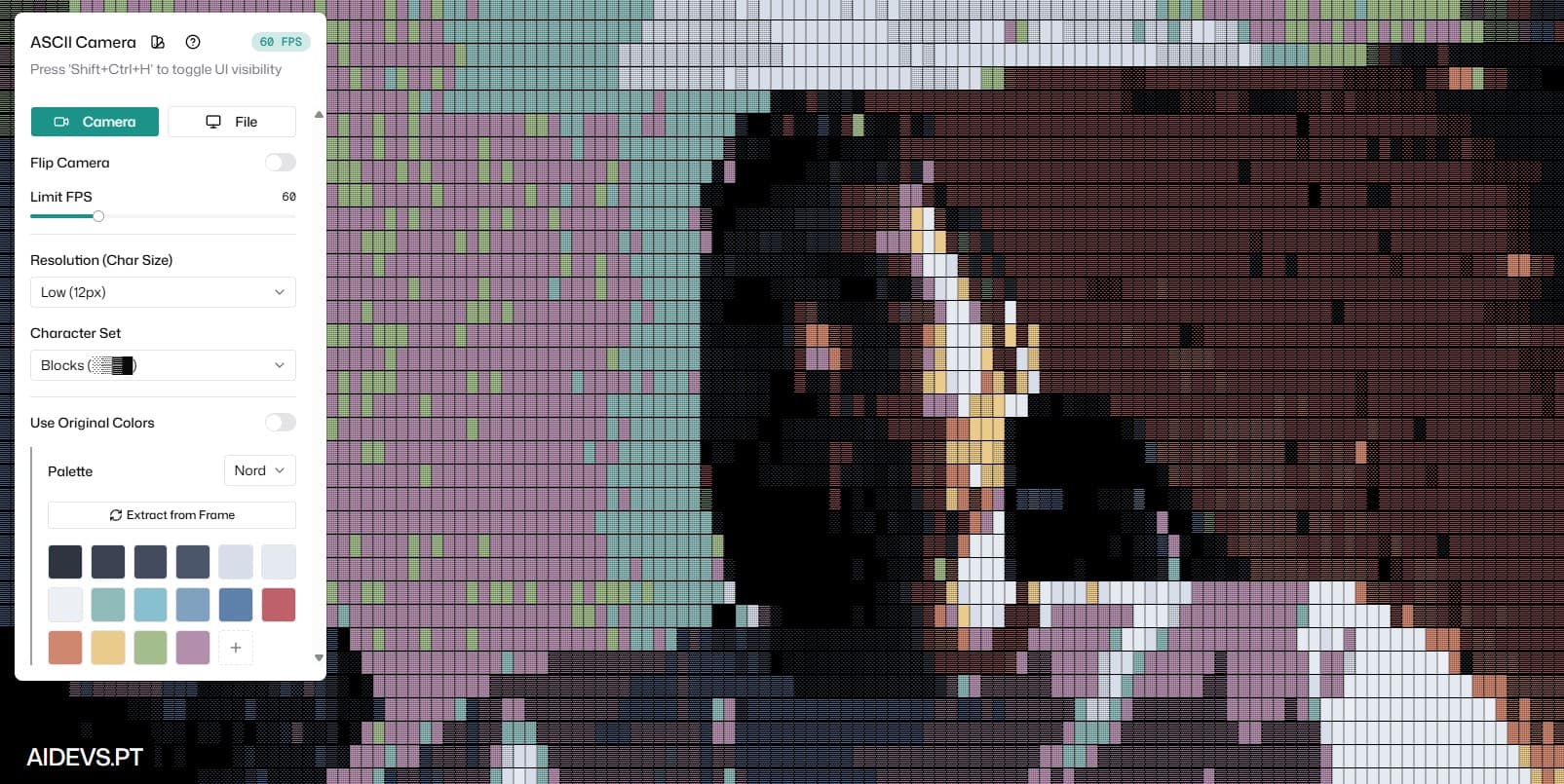
What is ASCII Camera?
ASCII Camera is a free, browser-based video-to-ASCII converter. It takes a live webcam feed or a local video file and renders every frame as a grid of text characters, where each character represents a brightness level from the original image. The result is a real-time ASCII art stream that runs entirely in your browser; no server uploads, no accounts, no software to install.
It works on any modern desktop browser and gives you full control over how the output looks: which characters are used, what colors are applied, how detailed the render is, and more.
Live Webcam to ASCII
Click Camera and grant access to your webcam. Your feed is immediately rendered as ASCII art in real time. This is useful for:
- Adding a retro or artistic overlay to video calls and streams
- Creating content for social media with a distinctive visual style
- Experimenting with generative art driven by live input
The webcam stream never leaves your browser. All processing happens locally on your device.
Top tip
Use the Flip Camera toggle if you prefer a mirrored view, which feels more natural when looking at yourself, or when using it for live streaming and video calls.
Video File to ASCII
Click File to upload a local video. The tool loops the video automatically and renders it as ASCII in real time, using the same engine as the camera mode. This is ideal for:
- Converting existing video clips into ASCII art
- Previewing how footage looks in different character sets and palettes before committing to a style
- Generating unique visual content from any MP4, WebM, or other browser-supported video format
Resolution Control
The Resolution (Char Size) setting determines how many pixels each ASCII character represents. A smaller char size means more characters on screen (higher detail); a larger char size produces a blockier, more stylized look.
| Char Size | Detail Level | Performance |
|---|---|---|
| 4 px | Very high | Demanding |
| 8 px | High | Moderate |
| 12 px | Medium | Light |
| 20 px | Low | Minimal |
Choose from built-in presets, use any custom resolution you have saved, or select Custom to type an exact pixel value. Custom resolutions can be saved as presets for quick access later.
Character Sets
The character set determines which characters represent different brightness levels, ordered from lightest to darkest. This is where the artistic identity of your ASCII output is defined.
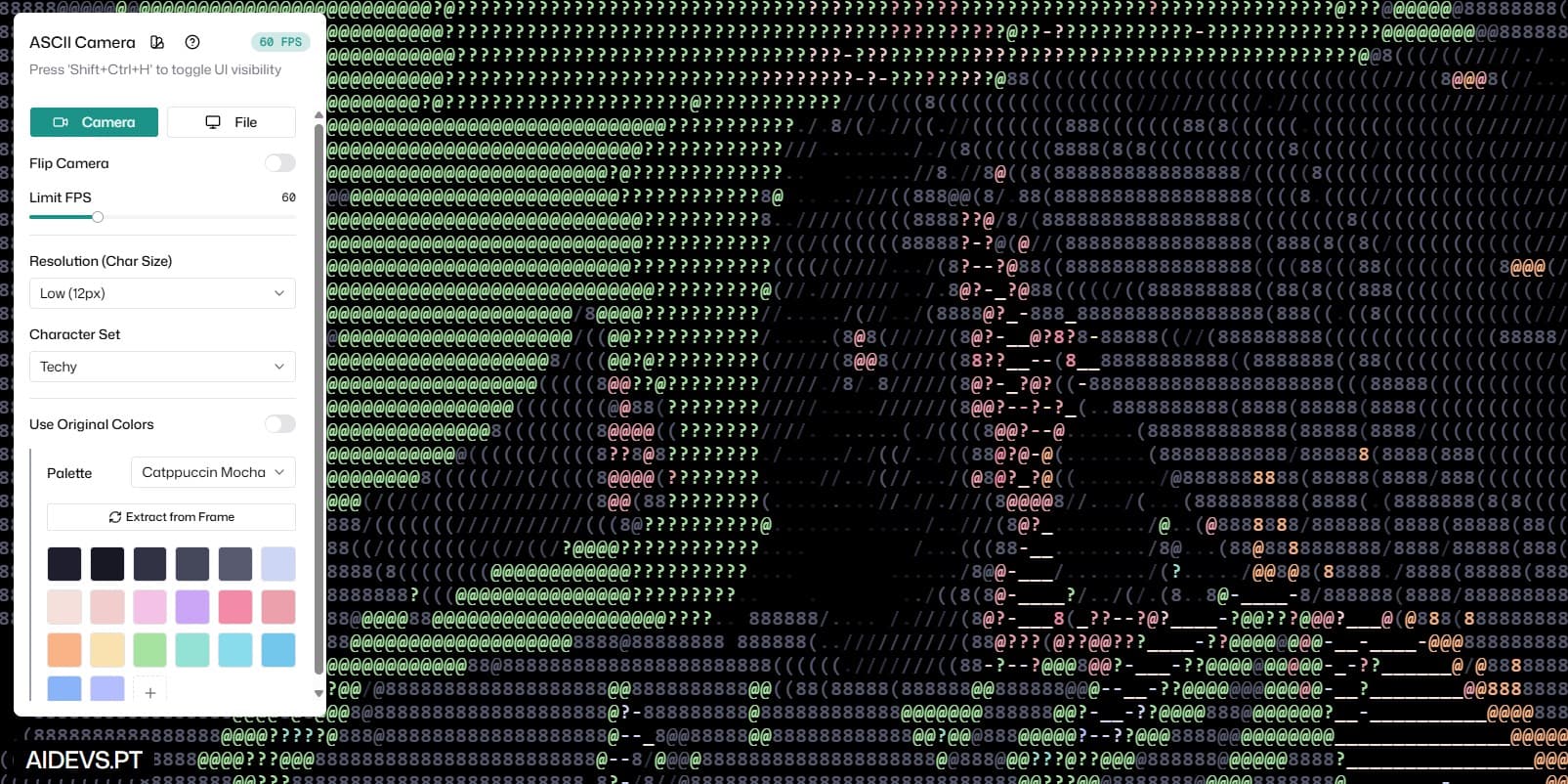
Built-in character sets include:
- Standard ASCII
- Simple (.#)
- Detailed
- Matrix (01)
- Blocks (░▒▓█)
The Blocks set uses Unicode block characters for a pixel-art style that feels closer to a mosaic than traditional text art. The Matrix set gives a distinctly cyberpunk aesthetic using only zeros and ones.
You can also create your own character sets by selecting Custom and typing your characters in order from lightest to darkest. Save custom sets as presets so you can switch between them instantly.
Colors and Palettes
By default, ASCII Camera applies a color palette to the output. Toggle Use Original Colors on to keep the exact colors from your video source instead.
When using palettes, you can choose from several built-in options:
- Nord
- Gameboy
- Matrix
- Cyberpunk
- Catppuccin Mocha
Each palette defines a set of color swatches that are mapped to brightness levels in the output. You can also build your own palette by adding, removing, or editing individual swatches.
The Extract from Frame button analyses the current video frame and generates a palette from its most prominent colors; a quick way to create a palette that matches your source material.
Custom palettes can be saved as presets for reuse across sessions.
Presets: Save and Load Full Configurations
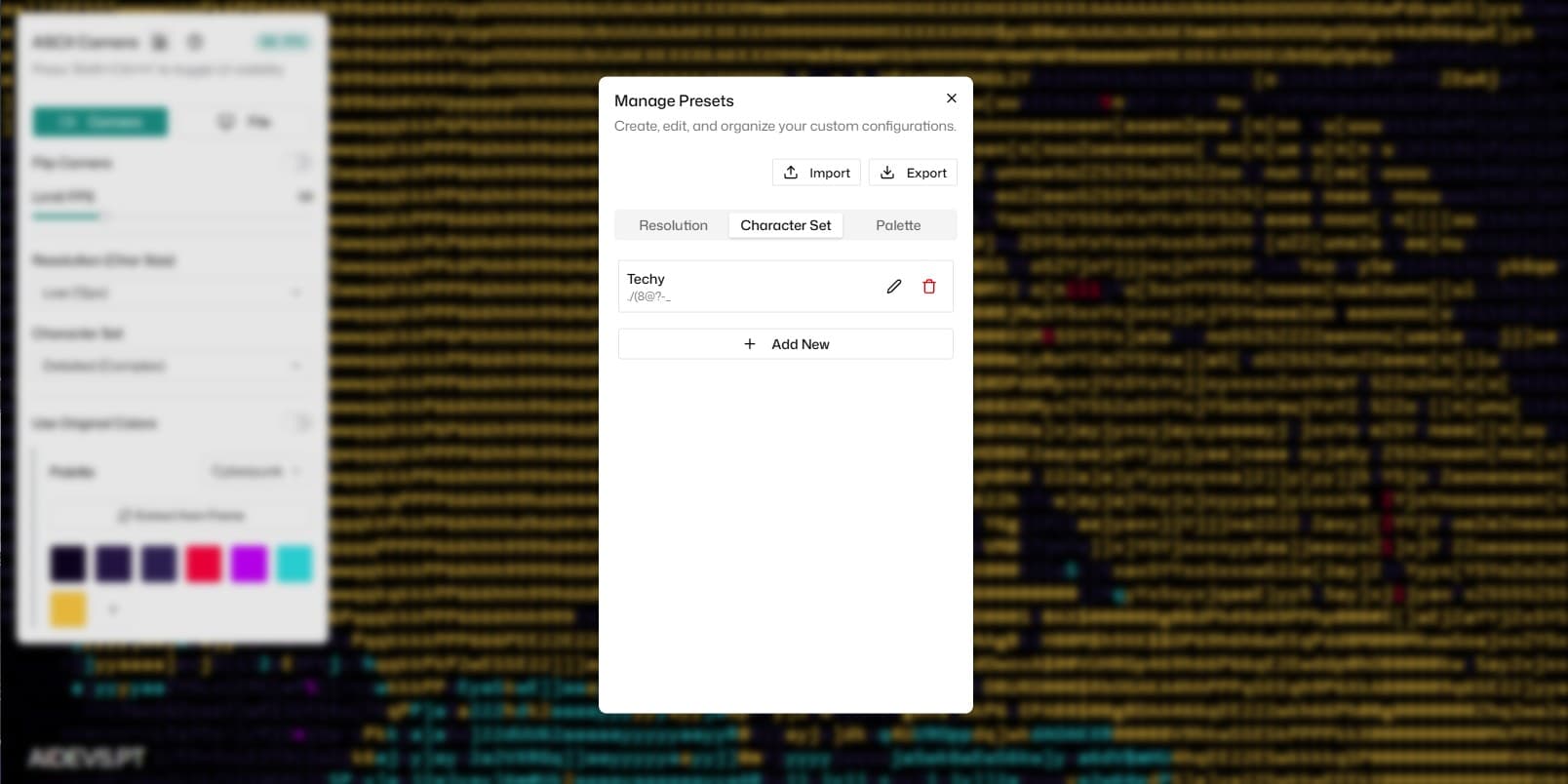
The presets system is one of the most powerful features in ASCII Camera. Using the Presets button next to the title, you can save or load a complete configuration: resolution, character set, palette, FPS limit, and all other settings; in a single click.
This means you can set up a look you like once, save it, and recall it instantly. You can also export presets to share them with others, or import presets that someone else has created.
Individual settings (resolutions, character sets, palettes) each have their own save mechanism too, so you can mix and match components from different presets.
FPS Control
The Limit FPS slider sets the maximum frame rate of the ASCII render loop, from 1 to 240 FPS. Lower values reduce CPU and GPU usage, which is useful if you are running the tool alongside other applications. Higher values produce smoother motion in the ASCII output.
Keyboard Shortcuts
| Shortcut | Action |
|---|---|
| Ctrl + Shift + H (or ⌘ + Shift + H on Mac) | Toggle the control panel visibility |
Hiding the control panel gives you a clean, full-screen ASCII view; useful for screen recording, presentations, or simply enjoying the output without UI clutter.
No Install, No Signup, No Cost
ASCII Camera runs entirely in your browser. There is no software to download, no account to create, and no usage limits. Your video data is processed locally and never uploaded to any server.